Killara Learning Hub
  • Home
  • Killara Learning blog
  • Training
    • BYOD policy & setup
    • Student training
    • Teacher Techno lounge
    • Parent Technology Hub
  • Quick links
    • BYOD equity laptop form and procedure
    • BYOD readiness checklist
    • BYOD contact us
    • BYOD FAQ
    • Easy to read BYOD policy

Killara Learning  blog

Advanced sharing features in Zoom

18/8/2021

0 Comments

 
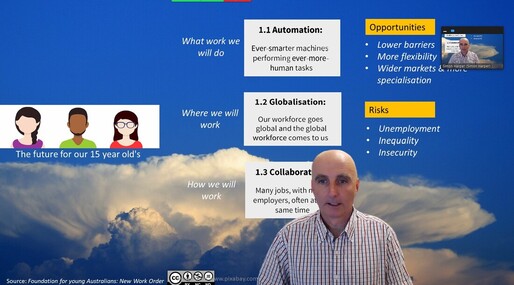
Are you aware Zoom has a number of advanced sharing features that will add interactivity and super charge your lessons? 
You can to use a PowerPoint as a virtual background or use a second camera in the one call​ to enhance learning.
Picture
So lets look at how to use these wonderful features and how they work in your online classroom. 
PowerPoint as virtual background
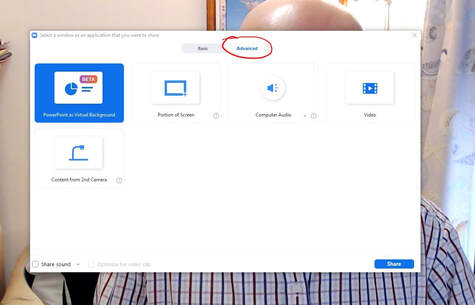
  • Open and start your meeting
  • Click the share button and click on the advanced button at the top of the box​
  • ​Click the PowerPoint as a virtual background
Picture
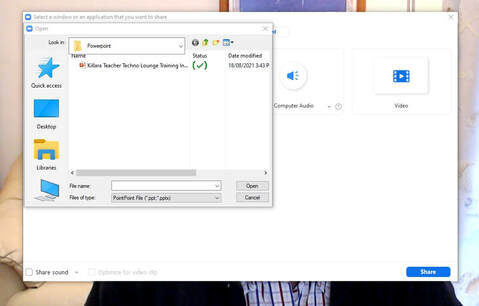
  • Choose the folder and your PowerPoint presentation
Picture
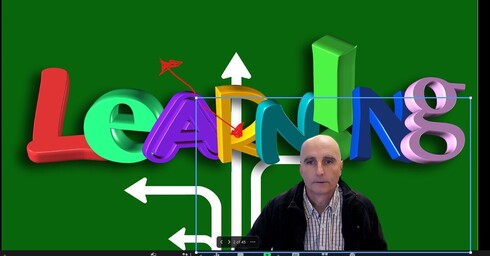
  • Click on the screen to adjust your size on the slide and then click on the screen to close the box.
Picture
  • Use the arrow button to advance your slides
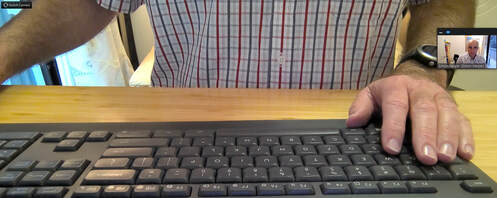
Use a second camera on the same call
This feature could be used to do a science experiment or show something on your desk.​
Important: This will only work if you have two cameras e.g. web cam and laptop camera.
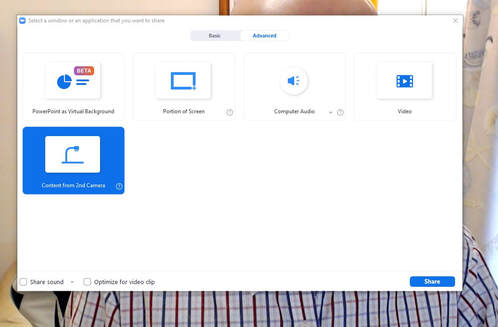
  • Click the share button and click on the advanced button at the top of the box
  • Click on content from 2nd camera​ 
Picture
  • Your second camera will open. If you have multiple cameras you can change them with the change camera on the top left hand corner.
Picture
Share audio for videos 
To share the sound of a video with your students there is a quick setting you will need to make.
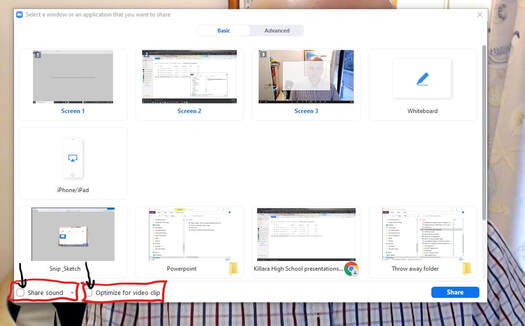
  • ​When you open the sharing window make sure you click the radio button for share sound and optimise for a video clip.
Picture
Please share and comment how you are using the advanced sharing features of Zoom.
0 Comments

Your comment will be posted after it is approved.


Leave a Reply.

    Welcome

    The Killara Learning blog is here to share the tips, tricks and ways to leverage technology for better teaching and learning. Please comment on the posts.

    Blog Revolver map

    Archives

    November 2021
    October 2021
    August 2021
    July 2021
    February 2021
    May 2020
    August 2017
    July 2017
    May 2017

    Categories

    All
    21st Century
    Adobe
    BYOD
    Google
    Google Cardboard
    Innovation
    Learning From Home
    Students
    Teachers
    Teaching & Learning
    Virtual Reality

    RSS Feed

© COPYRIGHT  Killara High School 2025
All images are from www.pixabay.com (CC0 Public Domain licence)​
Photo from Howdy, I'm H. Michael Karshis
  • Home
  • Killara Learning blog
  • Training
    • BYOD policy & setup
    • Student training
    • Teacher Techno lounge
    • Parent Technology Hub
  • Quick links
    • BYOD equity laptop form and procedure
    • BYOD readiness checklist
    • BYOD contact us
    • BYOD FAQ
    • Easy to read BYOD policy